

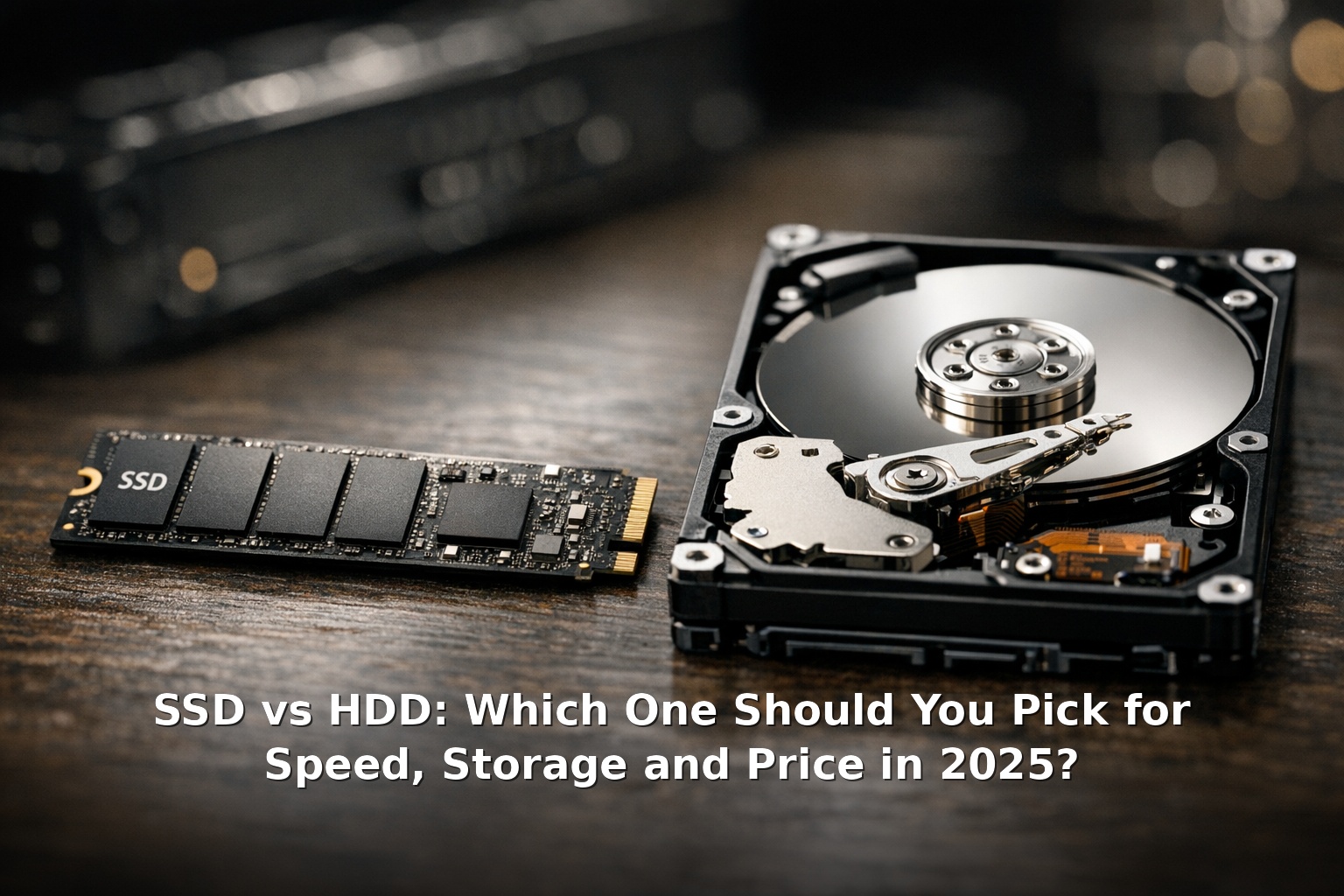
SSD vs HDD: Which One Should You Pick for Speed, Storage and Price in 2025?
Quick answer: Pick an SSD for anything you boot, launch, or load — your OS, your games, your creative apps. Pick an HDD only for cheap bulk storage — archived files, media libraries, or a NAS. In 2025, most people should run an SSD as their primary drive and add an HDD (or second SSD) if they need more space on a budget. For more insights, Samsung SSD product pages.
The SSD vs HDD debate still matters when you’re shopping on a budget. Prices change quickly, and the right choice depends on what you actually do with your PC. This guide breaks everything down in plain English so you can make the right call for your next build or upgrade. For more insights, Samsung SSD product pages.
What Each Technology Is in Plain English
HDD — Hard Disk Drive
An HDD is a stack of spinning metal platters with a tiny arm that reads and writes data magnetically — like a record player combined with a tape deck. Faster platters (5,400 RPM for efficiency, 7,200 RPM for performance) mean faster access. The technology is over 60 years old, but it’s cheap per gigabyte and proven at massive scales. For more insights, Crucial SSD buying guide.
SSD — Solid-State Drive
An SSD has no moving parts. It stores data on NAND flash memory chips — a much faster, more durable version of what’s inside a USB stick. The two common interfaces are SATA (slower, compatible with any PC) and NVMe (faster, plugs directly into the motherboard via an M.2 slot). In 2025, NVMe is the standard for new builds; SATA SSDs are mostly for upgrading older laptops. For more insights, Crucial SSD buying guide.
One sentence summary: HDDs have spinning disks inside them; SSDs are effectively giant memory chips. That explains the entire speed and reliability gap. For more insights, Tom’s Hardware SSD reviews.
Speed Comparison: Boot Times, Game Loading, File Transfers
Speed is where SSDs demolish HDDs. The difference isn’t marginal — it changes how you use a computer. For more insights, Tom’s Hardware SSD reviews.
| Task | SATA SSD | NVMe SSD | 7,200 RPM HDD |
|---|---|---|---|
| Windows boot to desktop | 10–15 seconds | 6–10 seconds | 40–60 seconds |
| Game level load (Cyberpunk 2077) | 15–20 seconds | 5–8 seconds | 50–90 seconds |
| Copy 10 GB file (sequential) | ~20 seconds | ~3–5 seconds | ~60–90 seconds |
| Launch Chrome | 1–2 seconds | <1 second | 5–10 seconds |
| Open 50 MB Photoshop file | 2–3 seconds | <1 second | 12–15 seconds |
An NVMe SSD can hit sequential read speeds of 5,000–7,000 MB/s (PCIe 4.0) or up to 10,000 MB/s (PCIe 5.0). A 7,200 RPM HDD tops out around 160–200 MB/s. That’s a 25–50x difference, and in everyday use it translates to everything feeling instant instead of sluggish. Once you’ve used an SSD for a week, an HDD genuinely feels broken.
Sequential writes to large files (e.g., copying a media project to an archive drive) are where HDDs still hold up — a good drive manages 150–200 MB/s, fine for overnight backups. For anything interactive, SSD wins hands down.
Price Per GB: Current UK Street Prices
HDDs still have a real argument on price. As of mid-2025, here’s what you can expect on UK retailers:
| Drive Type | Capacity | Typical UK Price | Price per GB |
|---|---|---|---|
| NVMe SSD (PCIe 4.0) | 1 TB | £55–£85 | ~5.5–8.5p |
| NVMe SSD (PCIe 4.0) | 2 TB | £100–£150 | ~5–7.5p |
| SATA SSD | 1 TB | £50–£70 | ~5–7p |
| SATA SSD | 2 TB | £90–£130 | ~4.5–6.5p |
| HDD (Barracuda/Blue) | 1 TB | £35–£45 | ~3.5–4.5p |
| HDD (Barracuda/Blue) | 4 TB | £70–£95 | ~1.8–2.4p |
| HDD (IronWolf/WD Red) | 8 TB | £140–£170 | ~1.8–2.1p |
| HDD (IronWolf/WD Red) | 16 TB | £250–£310 | ~1.6–1.9p |
The key takeaway: at 1 TB, SSDs are now close enough in price that buying an HDD for a primary drive doesn’t make financial sense. The gap widens at higher capacities — at 4 TB and above, HDDs are roughly half the price per gigabyte, which is why media servers and backup arrays still use them.
Keep an eye on CamelCamelCamel for UK price history before buying large drives.
Reliability and Lifespan
Reliability depends more on the specific drive model than the technology class, but there are engineering differences worth understanding.
HDD Reliability
HDDs have mechanical parts that will eventually fail — most commonly a head crash where the read/write arm contacts the spinning platter. Average lifespan is 3–5 years under normal use. NAS-rated drives (WD Red, Seagate IronWolf) typically last 4–6 years.
SSD Reliability
SSDs have no moving parts, so they don’t fail from mechanical wear. Their limitation is write endurance — each NAND flash cell can only be written a finite number of times. A typical 1 TB SSD rated for 600 TBW would take 15+ years of normal use to exhaust. The main risk is controller failure, which can render the whole device unreadable.
The Bottom Line on Reliability
- SSDs are more robust physically — drop your laptop and an SSD will survive; an HDD might not.
- HDDs are more recoverable after failure — data recovery services can often salvage data from a crashed HDD. Failed SSD controllers frequently make data unrecoverable even by labs.
- Both need backups — any drive can fail at any time without warning.
Gaming vs Workstation vs Media Server Recommendations
Your use case changes the calculus significantly. Here are concrete recommendations for the three most common scenarios.
Gaming PC
Recommendation: 1 TB or 2 TB NVMe SSD as the primary/only drive.
Modern games are enormous (Call of Duty: Black Ops 6 is over 200 GB with updates) and increasingly rely on DirectStorage to stream assets directly from the SSD to the GPU. An HDD will cause texture pop-in, long loading screens, and stuttering in newer titles. There is no scenario in 2025 where a gaming PC should boot from an HDD. If budget is tight, buy a 500 GB NVMe SSD now and add storage later.
Workstation / Creative Professional
Recommendation: NVMe SSD for OS + apps + active projects; HDD (or second SSD) for archiving completed work.
Video editors, 3D artists, and developers benefit enormously from NVMe speeds when opening large files, compiling code, or scrubbing through 4K/8K timelines. Keep everything you touch weekly on the SSD. For raw 4K+ footage daily, consider a PCIe 5.0 SSD like the Samsung 990 Pro or the Crucial T700.
Media Server / NAS
Recommendation: HDDs (NAS-rated) for media storage; small SSD for the OS/cache.
Plex or Jellyfin servers stream video at bitrates well within HDD capabilities — a 4K Blu-ray remux streams at around 100–128 Mbps, which any HDD can handle. Capacity per pound is what matters here. Buy two large NAS drives (WD Red Plus or Seagate IronWolf) in RAID 1. Use a small 120–250 GB SSD for the OS and metadata database. If you have the budget, a 500 GB SSD used as a cache can dramatically improve metadata browsing.
Hybrid Setups
The best of both worlds involves using SSDs and HDDs together. Here are the most practical hybrid setups in 2025.
1. SSD Boot + HDD Storage (The Classic)
Install Windows or macOS on a 250 GB–1 TB SSD. Install applications and games on the SSD. Use a 2–8 TB HDD for documents, photos, music, and downloads. This is the most cost-effective way to build a fast system with lots of storage in a desktop PC with multiple drive bays.
2. SSD with HDD Caching
Use a small, fast SSD as a cache in front of a large HDD. Frequently accessed files are automatically promoted to the SSD for speed. Intel Optane was the best-known implementation but is now discontinued. Third-party software like Primocache can do roughly the same thing. This is niche — it’s simpler and cheaper to just buy a big SSD.
3. All-Flash with Cloud / NAS Offload
Buy a 2–4 TB NVMe SSD for your main PC and offload old files to a NAS with HDDs or cloud storage (Backblaze, iDrive). This gives you SSD speed without paying enterprise prices for huge capacities.
4. Steam Game Library on HDD
Use an HDD as cold storage for games you aren’t currently playing. Move them back to the SSD when you want to play again — takes a few minutes but saves re-downloading 100+ GB.
Common Mistakes
Here are the errors we see most often.
Mistake 1: Buying an HDD as the only drive in a new PC
Unless you’re building a pure media server or a system for less than £150 total, this is a bad idea in 2025. A £50 SSD will make a £500 PC feel faster than a £2,000 PC with an HDD. You will regret it every single day.
Mistake 2: Buying a no-name, budget SSD without DRAM
DRAM-less SSDs (often “QLC” or without mentioning a DRAM cache) can slow down significantly during sustained writes and have worse longevity. Stick with trusted brands: Samsung, Crucial, Western Digital, SK Hynix, Solidigm. Check Tom’s Hardware SSD reviews before buying unfamiliar brands.
Mistake 3: Ignoring the motherboard’s M.2 slot generation
Buying a PCIe 5.0 SSD for a PCIe 3.0 motherboard works (it’ll run at 3.0 speeds), but you’re paying a premium for bandwidth you can’t use. Check your motherboard specs first. Conversely, don’t pair a budget PCIe 3.0 SSD with a modern PCIe 5.0 slot unless you’re fine leaving performance on the table.
Mistake 4: Using an SSD for long-term cold storage
If you unplug an SSD and leave it in a drawer for a couple of years, the NAND cells can slowly lose their charge — especially with TLC and QLC flash. HDDs hold data reliably for much longer periods when powered off. For archives, use an HDD, not an SSD.
Mistake 5: Not enabling TRIM on an SSD
On Windows 10/11 and modern Linux, TRIM is enabled by default. If you’re using an older OS, verify that TRIM is active. Without it, SSDs slow down significantly over time. Run fsutil behavior query DisableDeleteNotify in a command prompt — a result of 0 means TRIM is working.
Short FAQ
Can I replace my laptop’s HDD with an SSD?
Almost certainly — it’s the single best performance upgrade you can make to an old laptop. You’ll need a 2.5-inch SATA SSD if your laptop has a standard drive bay, or an NVMe SSD if it has an M.2 slot. Expect boot times to drop from 45+ seconds to under 15.
How long do SSDs actually last?
For normal home use, 5–10 years is typical. The TBW (terabytes written) rating is the spec to check. A 1 TB SSD rated for 600 TBW means you could write 300 GB per day for over five years — far more than most users write.
Should I defrag an SSD?
No. Defragmenting an SSD is unnecessary (flash memory doesn’t need data arranged contiguously) and reduces lifespan by performing unnecessary writes. Windows automatically disables defrag for SSDs and uses “retrim” instead. Leave it on automatic.
Is it worth buying a used SSD?
Generally no. The cost savings are small, and you don’t know the drive’s write history or remaining endurance. A new budget NVMe SSD costs so little that buying used is hard to recommend.
Are external SSDs worth it over external HDDs?
For portable use — carrying between home, work, and coffee shops — yes. External HDDs have fragile spinning platters and are much more prone to damage from drops. External SSDs are faster, smaller, more rugged, and only slightly more expensive at 1 TB. For a desk-bound backup drive that doesn’t move, a 4 TB+ external HDD still offers better value.
Final Verdict for 2025
For the vast majority of people building or upgrading a PC in 2025: buy a 1 TB NVMe SSD as your boot and applications drive. If you need more than 2 TB of total storage, add a large HDD for less frequently accessed data. If your budget allows, go all-SSD with a 2 TB or 4 TB drive. For further reading, latest information on SSD vs HDD: Which One Should You Pick for Speed, S.
The HDD isn’t dead — it’s the best way to store large amounts of data cheaply. But it’s no longer a primary drive for any system you use interactively. In the SSD vs HDD debate, the real winner is having both in the right roles. For further reading, latest information on SSD vs HDD: Which One Should You Pick for Speed, S.
Prices and specifications mentioned were accurate as of May 2025. Check Amazon UK, Scan, and Ebuyer for current pricing.